Support · Claude
Connect Claude Code CLI
This guide shows you how to hook up Claude AI chat inside Cyer. Cyer uses the Claude Code CLI on your computer — the same tool Anthropic makes for developers. You pay Anthropic directly (Claude Pro). Cyer does not charge extra for AI.
You will NEED a Claude account
Before you start, sign up at claude.ai and make sure you have an active Claude Pro (or equivalent paid) subscription. The free Claude web chat alone is not enough — you need the account that works with Claude Code CLI.
-
1
Get a Claude account
Go to claude.ai and create an account if you do not have one. Upgrade to Claude Pro if you have not already.
Write down the email and password you use. You will need them when the sign-in window opens during setup.
-
2
Open Cyer Settings
Launch Cyer from the system tray (click the Cyer icon near the clock). Open Settings from the sidebar. Scroll to the Integrations section.
Find the row labeled Claude Code CLI. Click the Connect button on the right. A setup window called Connect Claude will open.
Tip: On first launch, Cyer may also show a “Connect Claude CLI” card on your Home briefing. You can start there instead — it opens the same wizard.
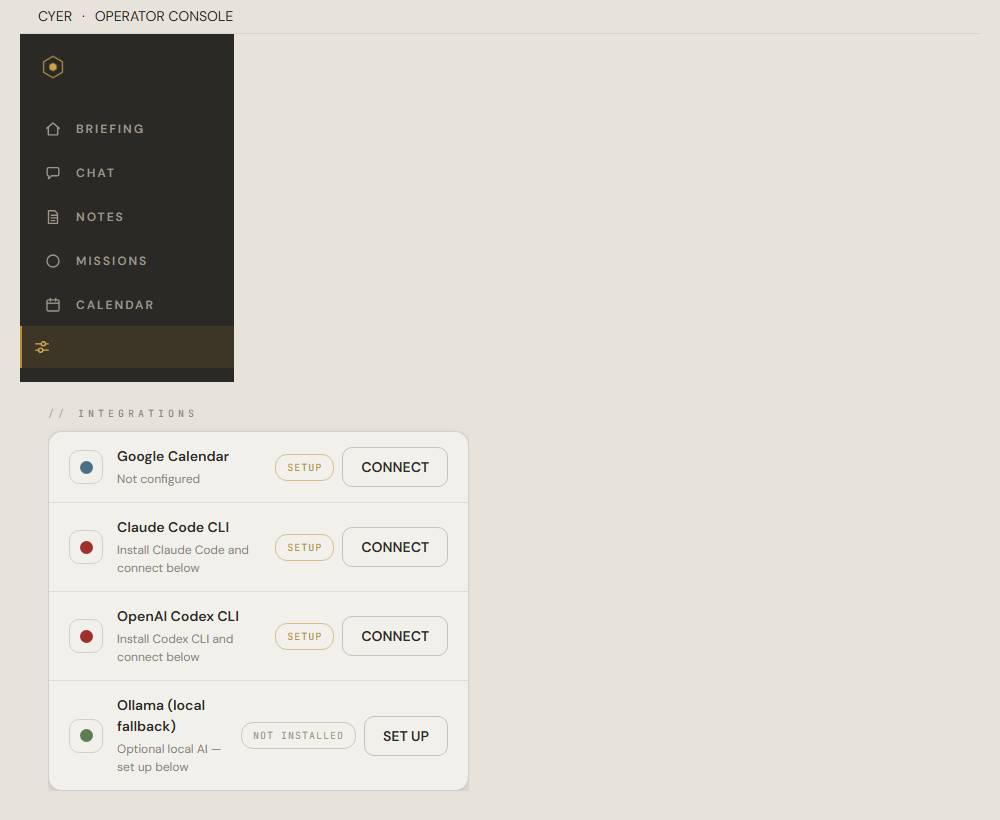
You should see Claude Code CLI under Integrations. Status may say SETUP until you finish. -
3
Install Claude Code CLI
In the Connect Claude window, look at Step 1: Install Claude Code CLI.
- Click Get Claude Code. Your browser opens the official install page at claude.ai/code.
- Download and install Claude Code for Windows. Follow Anthropic’s on-screen steps.
- When done, come back to Cyer and click Re-check (or close and reopen the Connect window).
Step 1 should turn green and show a version number like “Detected — v1.x.x”. Cyer may also detect a bundled copy of Claude if one shipped with your Cyer build.
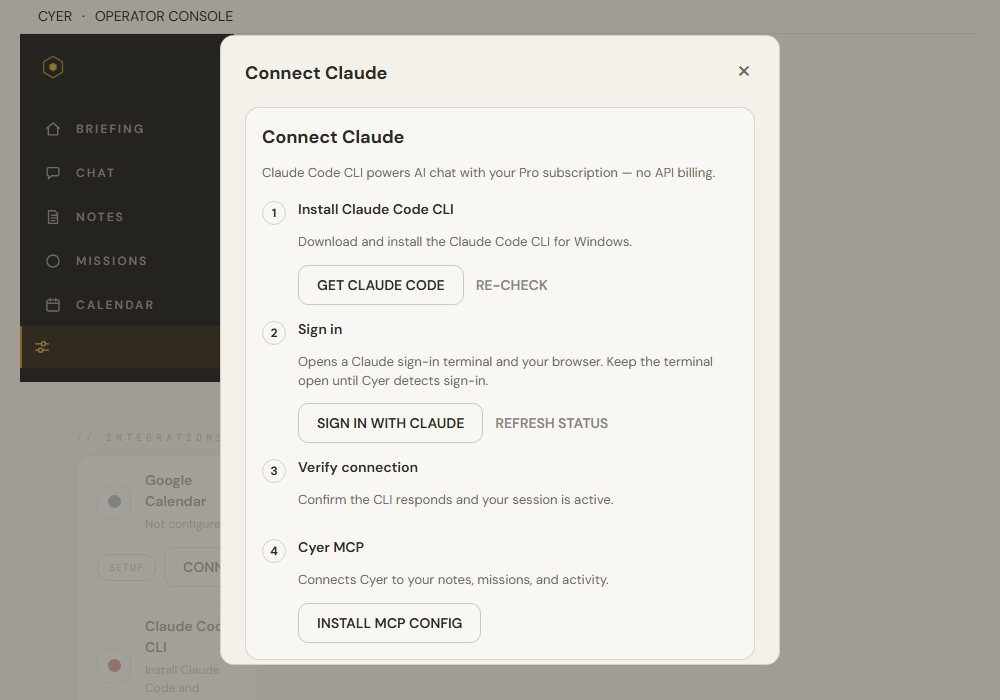
Step 1 before install: click Get Claude Code, install from the website, then Re-check. -
4
Sign in with Claude
On Step 2: Sign in, click Sign in with Claude.
- A black terminal window opens — this is the Claude sign-in window. Keep it open.
- Your web browser also opens. Log in with your Claude account.
- Wait. Cyer checks every few seconds and detects when sign-in finishes.
If the browser shows “localhost refused to connect,” do not panic. Go back to the terminal window and paste the code from the browser into that window. Then click I've signed in in Cyer.
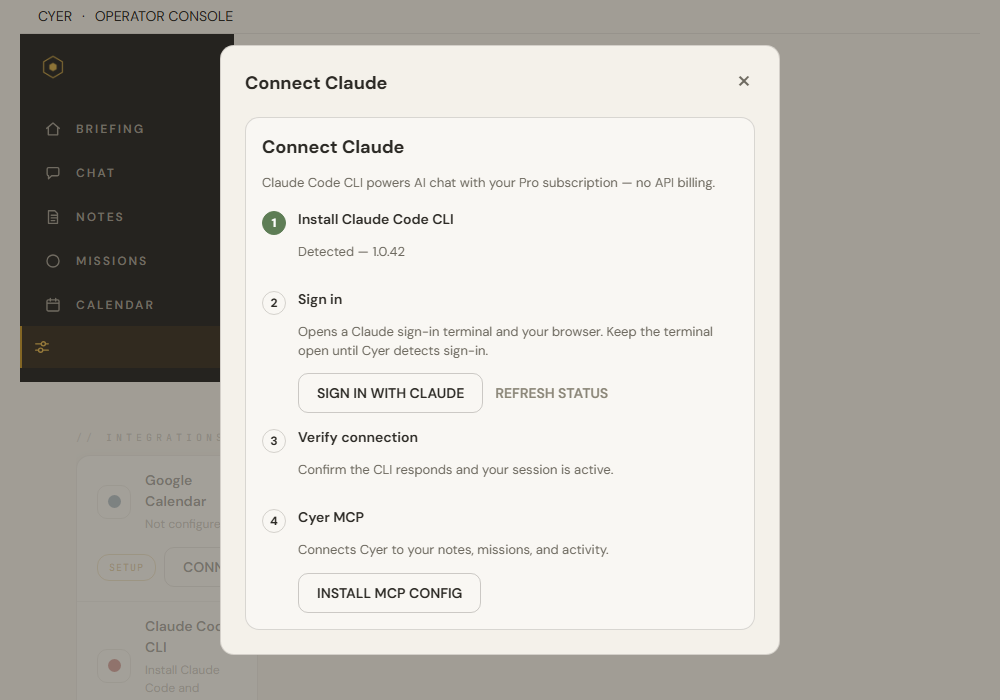
In the Connect Claude window, click Sign in with Claude — keep the sign-in terminal open until Cyer detects it. -
5
Verify the connection
On Step 3: Verify connection, click Verify connection if Cyer has not already done this for you. Cyer sends a quick test message through the CLI.
When it works, you will see “Ready to chat.” The Integrations row in Settings should show READY in green.
-
6
Set up Cyer MCP (optional but recommended)
Step 4: Cyer MCP lets Claude Desktop (and other tools) read your Cyer notes, missions, and activity. Cyer often installs this automatically after a successful verify.
If you still see Install MCP config, click it once. When done, the badge should say MCP CONFIGURED.
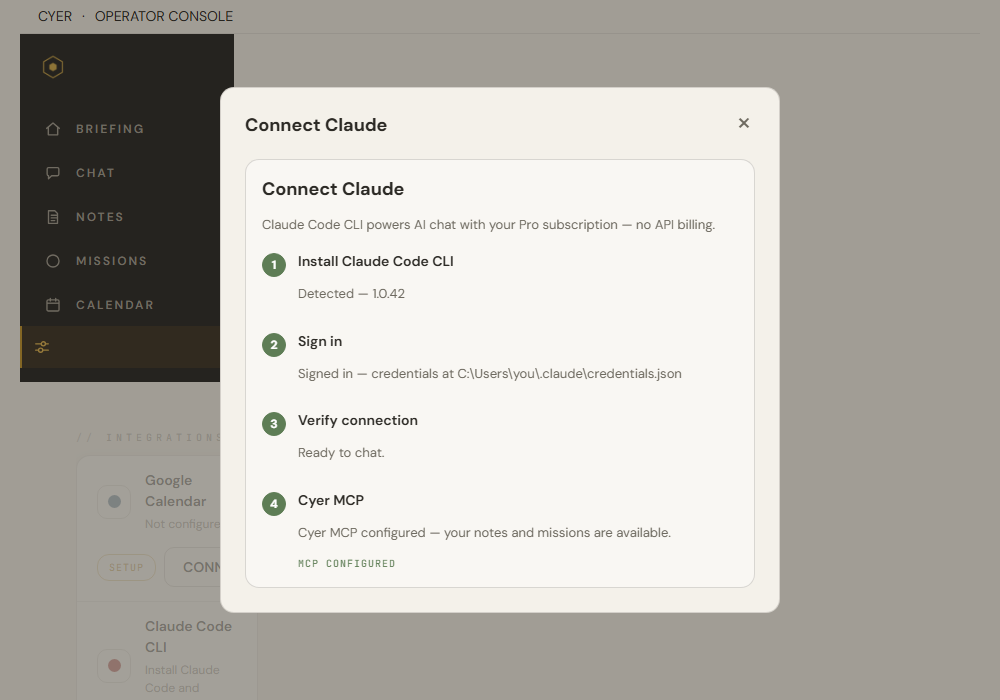
All four steps done — you are connected. -
7
Try AI chat
Open Chat from the Cyer sidebar. Type a question like “What should I focus on this afternoon?” and press Send.
Cyer sends your message through Claude Code CLI using your subscription. Your notes and notes and missions context can be included when MCP is set up.
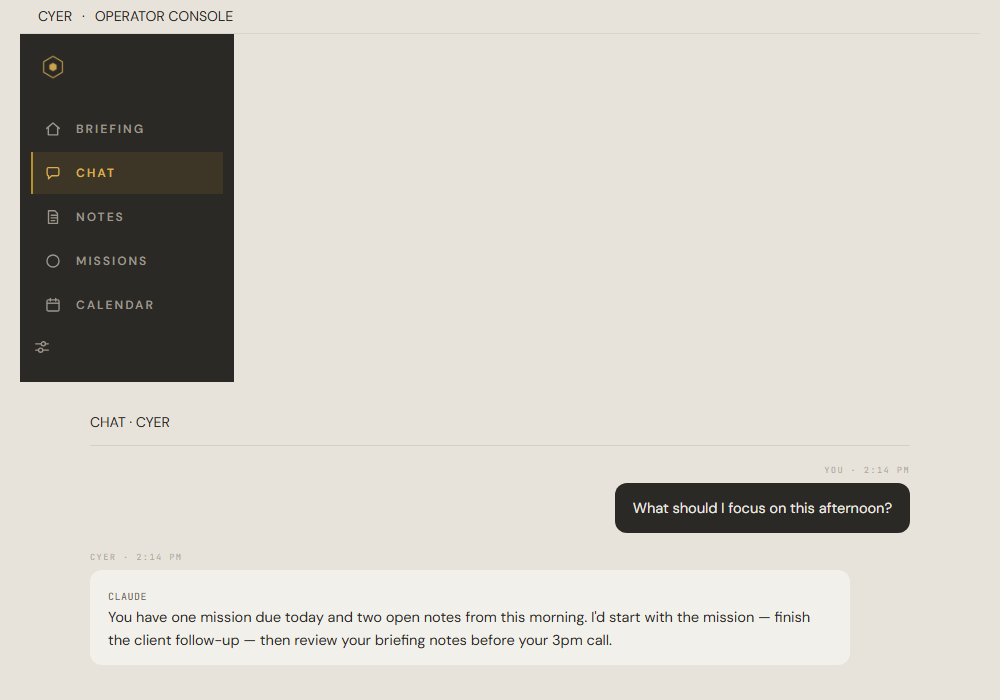
Chat should show Claude as connected and reply to your messages. -
?
Troubleshooting
Cyer cannot find Claude after install
- Open PowerShell and run
claude --version. If that fails, Claude is not on your PATH yet — restart your PC or reinstall. - If Cyer was started from the tray and still cannot find Claude, set the environment variable
ECHO_CLAUDE_PATHto the full path ofclaude.exebefore starting Cyer. - In Settings → Advanced → AI brain, you can set a Claude OAuth token file path if sign-in tokens are not picked up from the tray session.
Sign-in never completes
- Keep the terminal window open the whole time.
- Click Refresh status or I've signed in after finishing in the browser.
Claude is busy or out of usage
- Cyer can fall back to Ollama if you set that up. See the Ollama guide.
- Open PowerShell and run
Still stuck?
Email us at hello@cyer.app. Tell us which step failed and what you saw on screen.