Support · Codex
Connect OpenAI Codex CLI
This guide shows you how to use OpenAI Codex CLI for AI chat inside Cyer. Codex uses your existing ChatGPT subscription. Cyer does not add a separate AI bill.
You will NEED a ChatGPT account
Sign up at chatgpt.com and make sure you have a paid ChatGPT plan that works with Codex CLI. You also need Node.js installed on your PC to install the Codex command-line tool.
-
1
Install Node.js (if needed)
Codex CLI installs through npm (a Node.js tool). If you do not have Node yet, download the LTS version from nodejs.org and install it.
Open PowerShell and run
node --version. If you see a version number, you are ready. -
2
Open Cyer Settings
Launch Cyer from the system tray. Open Settings → Integrations. Find OpenAI Codex CLI and click Connect.
The Connect Codex window checks the CLI, your existing account, and the Cyer connection.
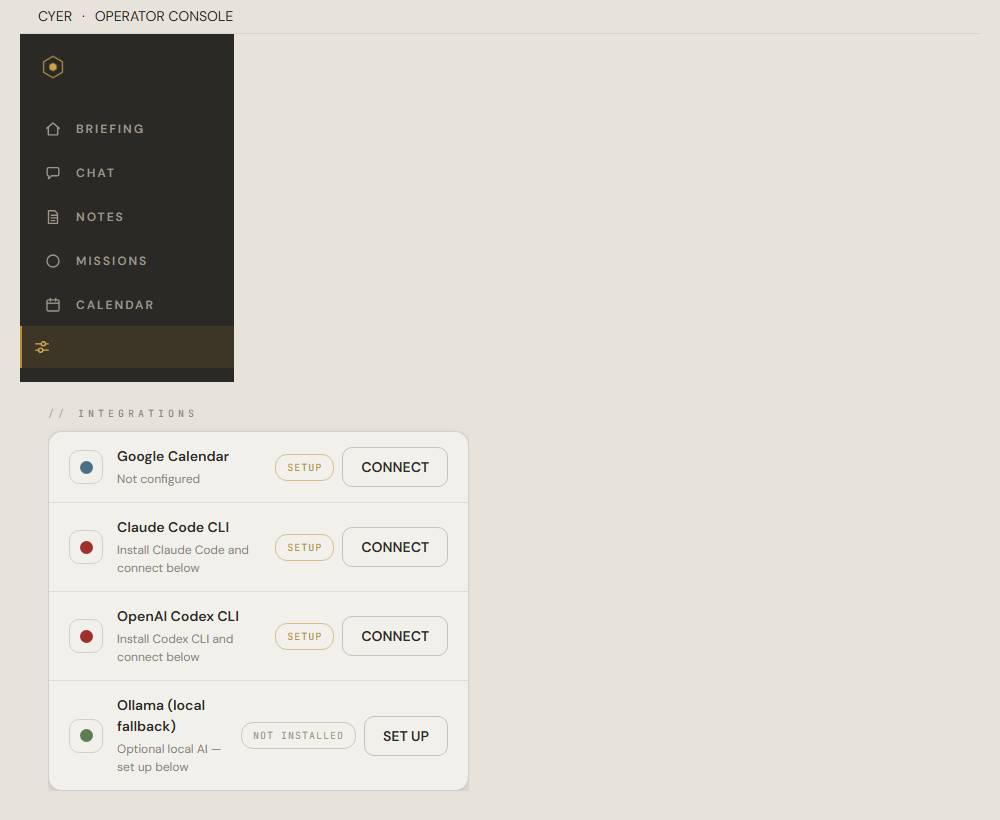
Open Integrations in Settings and click Connect on the Codex row. -
3
Install Codex CLI
On Step 1: Install Codex CLI:
- Click Get Codex CLI to open the npm package page, or run this in PowerShell:
npm install -g @openai/codex- Wait for the install to finish.
- Back in Cyer, click Re-check.
Step 1 should show “Detected” with a version number.
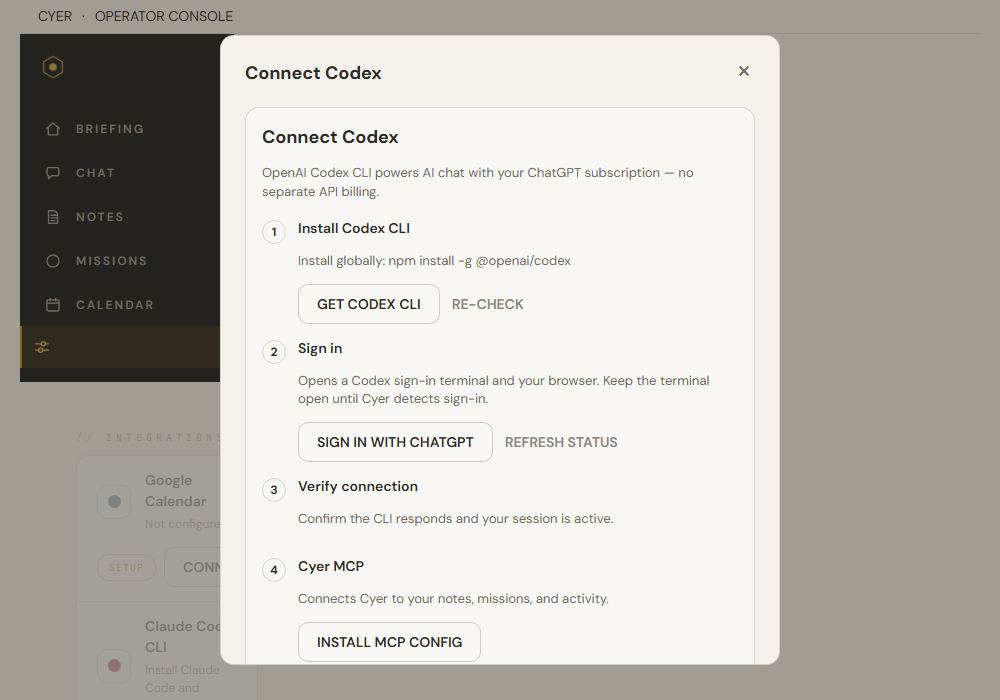
Install Codex globally, then Re-check in Cyer. -
4
Use your existing Codex account
If Codex is already signed in on this computer, Cyer detects that account and skips login. Only click Sign in with ChatGPT when Step 2 says Codex is signed out.
- A Codex sign-in terminal window opens — keep it open.
- Your browser opens the ChatGPT login page. Sign in with your account.
- Cyer polls until it detects sign-in. This can take up to a minute.
If Cyer is still waiting, click I've signed in after you finish in the browser.
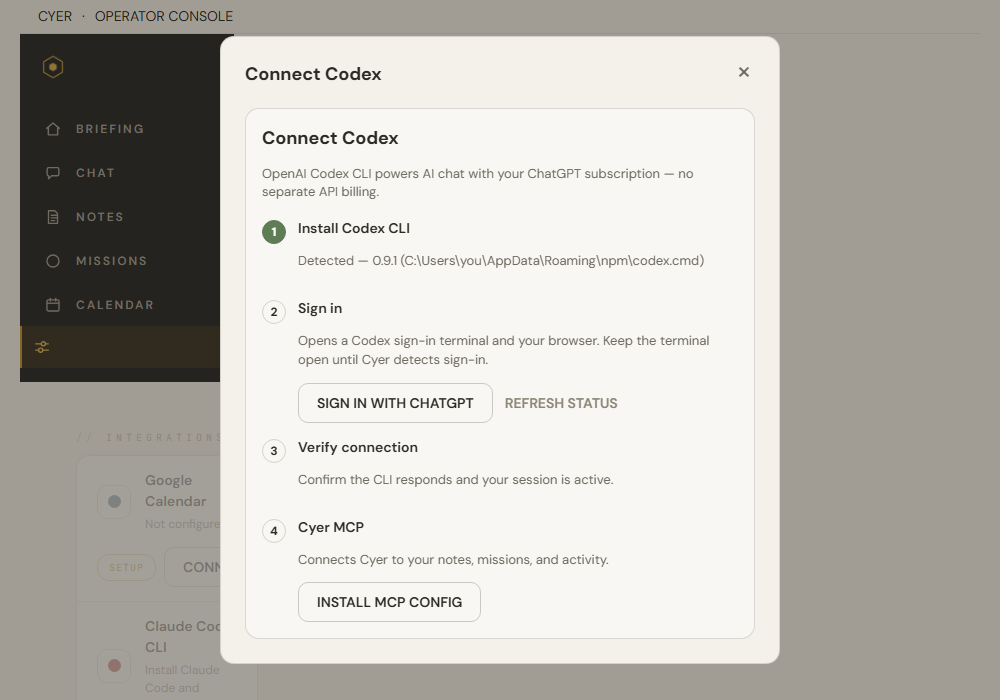
In Connect Codex, click Sign in with ChatGPT — same terminal + browser pattern as Claude. -
5
Connect Cyer automatically
After Cyer detects your Codex account, it adds the Cyer MCP connection automatically. Your existing models, projects, and other MCP servers remain unchanged.
If setup takes longer than expected, keep the window open while Cyer retries automatically. Look for MCP CONFIGURED.
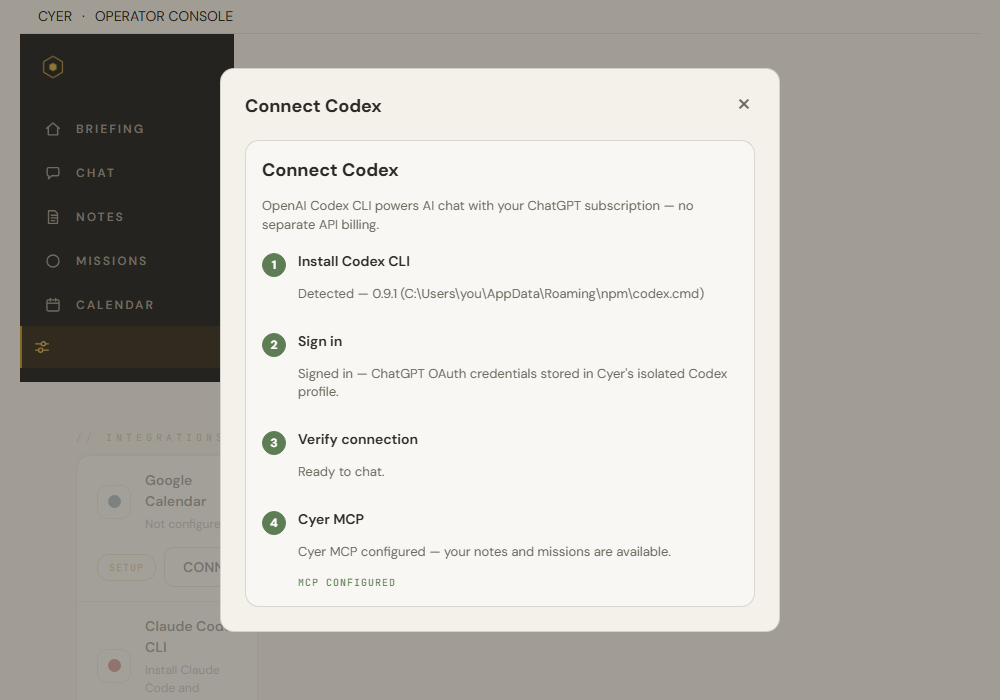
All steps green — Codex is connected. -
6
Choose Codex as your cloud AI
If you also use Claude, tell Cyer which cloud AI to prefer. In Settings → Advanced, open AI brain (hybrid).
- Set Preferred cloud provider to Codex.
- Leave Prefer cloud AI over Ollama checked if you want Codex first.
Open Chat and send a test message.
-
?
Troubleshooting
npm install fails
- Run PowerShell as Administrator and try again.
- Make sure Node.js LTS is installed from nodejs.org.
Cyer says Codex is not installed
- Run
codex --versionin PowerShell. If it fails, close and reopen Cyer after install.
Sign-in not detected
- Click Refresh status or I've signed in.
- Keep the Codex terminal window open until Cyer confirms.
Still stuck?
Email us at hello@cyer.app. Include any error text from Cyer or the terminal.