Support · Ollama
Install and connect Ollama
Ollama runs a small AI model on your own computer. It is free and works offline. In Cyer, Ollama is an optional backup — used when Claude or Codex cannot reply, or if you prefer not to use cloud AI.
Ollama is optional
If you already connected Claude or Codex, you can skip Ollama. It is still useful when cloud AI hits usage limits or you have no internet.
-
1
Download and install Ollama
Go to ollama.com/download and download the Windows installer. Run it and follow the prompts — same as installing any other app.
You can also click Get Ollama inside Cyer’s setup window — it opens the same page.
-
2
Make sure Ollama is running
After install, Ollama usually starts in the background. Look for a llama icon in the system tray (bottom-right of your screen, near the clock).
If you do not see it, open Ollama from the Start menu, or open PowerShell and run
ollama serve.
The tray icon means Ollama is running on your PC. -
3
Open Cyer and start setup
In Cyer, go to Settings → Integrations. Find Ollama (local fallback) and click Set up.
The status badge at the top may say NOT INSTALLED, NOT RUNNING, NO MODELS, or READY. That tells you what to do next.
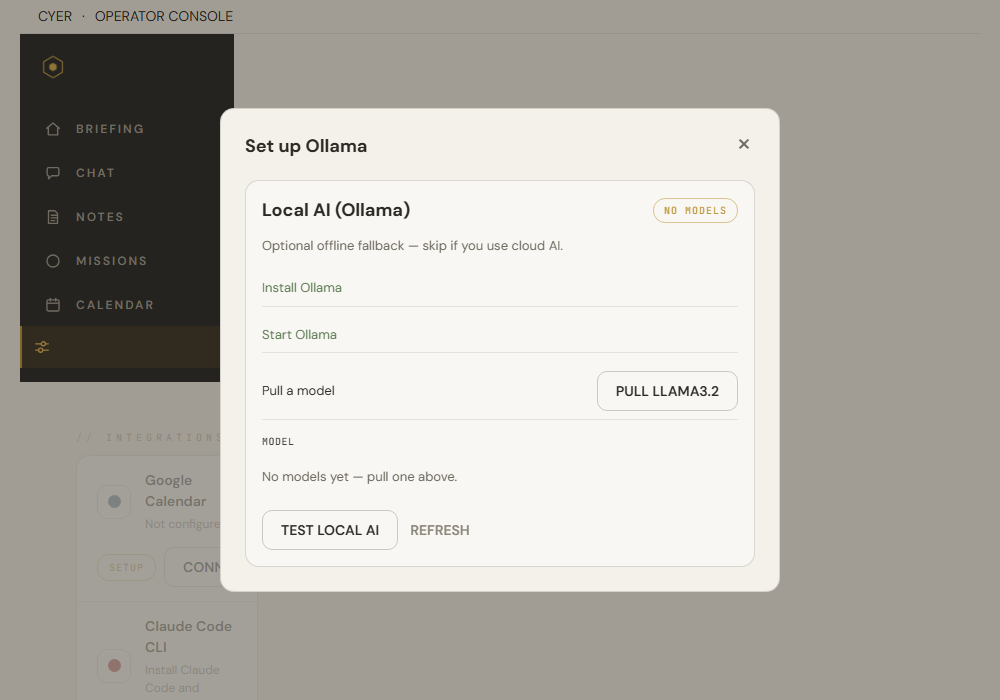
The Ollama wizard walks you through install → start → pull model → test. -
4
Pull a model
Cyer’s default model is llama3.2. Click Pull llama3.2 in the setup window. The download runs in the background and can take several minutes (it is a large file).
You can also pull manually in PowerShell:
ollama pull llama3.2When the pull finishes, Cyer should detect the model and show it in the Model dropdown.
Smaller models likephi3download faster but may give shorter answers. If you use a different model, pull it first, then pick it in the Model list. -
5
Select the model and test
- Choose your model from the Model dropdown (e.g. llama3.2).
- Click Test local AI. Cyer sends a short test message to Ollama.
- If it works, the badge should say READY and you will see a success message.
The default Ollama address is
http://127.0.0.1:11434. You only need to change this if you run Ollama on another computer (click Advanced — Ollama URL in the wizard).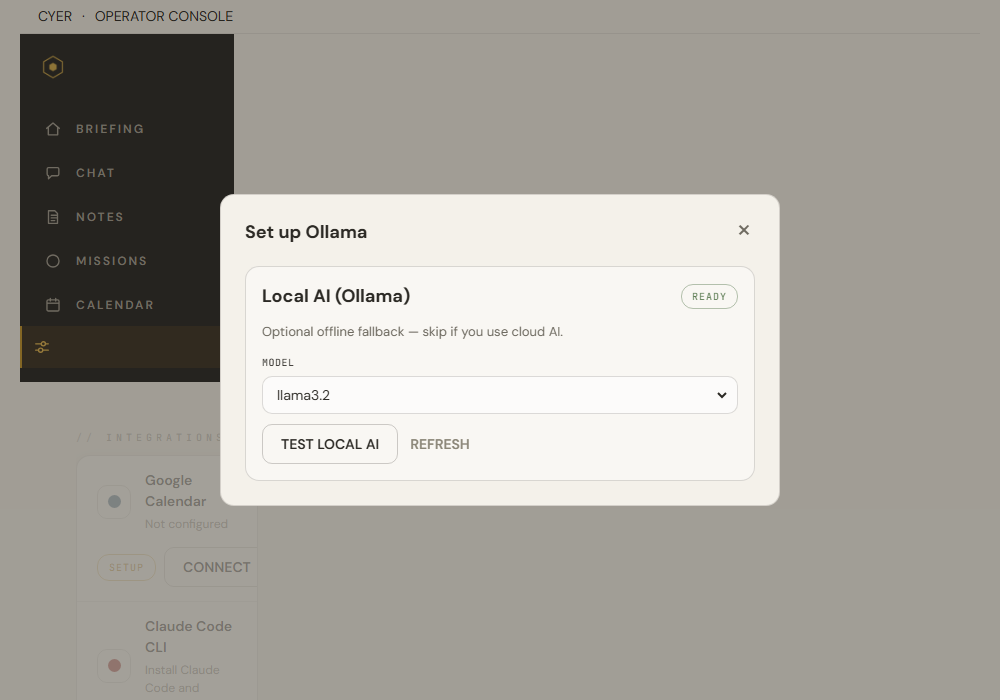
READY status means Ollama is working with Cyer. -
?
Troubleshooting
“Ollama is not running” Start Ollama from the Start menu or run ollama serve. Click Refresh in Cyer.Model not found Run ollama pull llama3.2or pull the exact name shown in Settings.Very slow replies Normal on CPU-only PCs. Try a smaller model like phi3.Cloud + Ollama both fail Claude may be out of usage — make sure the Ollama tray icon is visible. To verify Ollama yourself, run in PowerShell:
curl http://127.0.0.1:11434/api/tags— you should get JSON listing your models.
Still stuck?
Email us at hello@cyer.app. Tell us the status badge you see (NOT RUNNING, NO MODELS, etc.).