Support · Install
Install & first launch
Get Cyer running on Windows or Mac. No account is required to download. Optional Google sign-in is for billing and the same plan across machines — your notes and missions stay on your computer.
Unsigned beta
Installers are not code-signed with a paid publisher certificate yet. Windows SmartScreen and macOS Gatekeeper will warn you. Prefer official cyer.app/download or GitHub Releases, and check the published SHA-256 when available.
-
1
Download the installer
Open cyer.app/download. Choose Windows (64-bit
.exe) or macOS (Apple Silicon or Intel.dmg). You do not need to create an account first.Prefer the download page or the matching GitHub Release asset over random mirrors. Version and SHA-256 checksums are listed with each release when published.
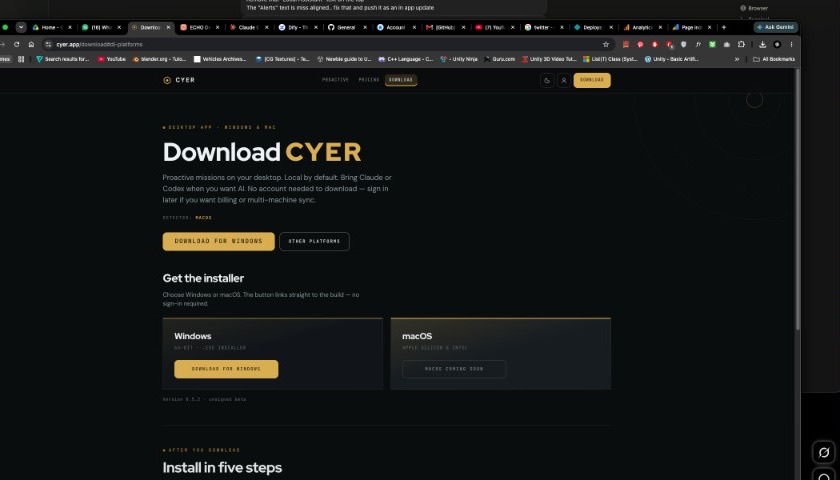
Pick your platform on the download page. Unsigned beta version is shown under the cards. -
2
Windows: SmartScreen & install
- Run the downloaded
.exe. - If Windows shows “Windows protected your PC”, click More info, then Run anyway. This is expected for unsigned beta builds.
- Accept the installer defaults (or choose a folder) and finish.
- Launch Cyer from the Start menu, desktop shortcut, or system tray.
In-app updates after the first install are integrity-checked separately from SmartScreen publisher trust. You only need the SmartScreen step for the initial installer (and for a full reinstall). - Run the downloaded
-
3
Mac: Gatekeeper & quarantine
- Open the
.dmgand drag Cyer into Applications. - Launch Cyer from Applications (not only from the DMG mount) so OAuth deep links work.
-
If macOS blocks the app (“can’t be opened” / “damaged” / unidentified developer):
open System Settings → Privacy & Security and choose Open Anyway,
or clear quarantine in Terminal:
xattr -dr com.apple.quarantine /Applications/Cyer.app
Hotkeys on Mac use ⌘ instead of Win: ⌘ShiftC Ask Cyer, and the same pattern for Y / Z / X. - Open the
-
4
First launch & Briefing
Onboarding walks through welcome → optional Google account/plan → optional mission → activity opt-in → Home / Briefing. You can skip optional steps and finish later in Settings.
Left-click the tray icon to show or hide the main window. Enable activity logging in Settings → Advanced → Activity & retention if you want day context and suggestions.
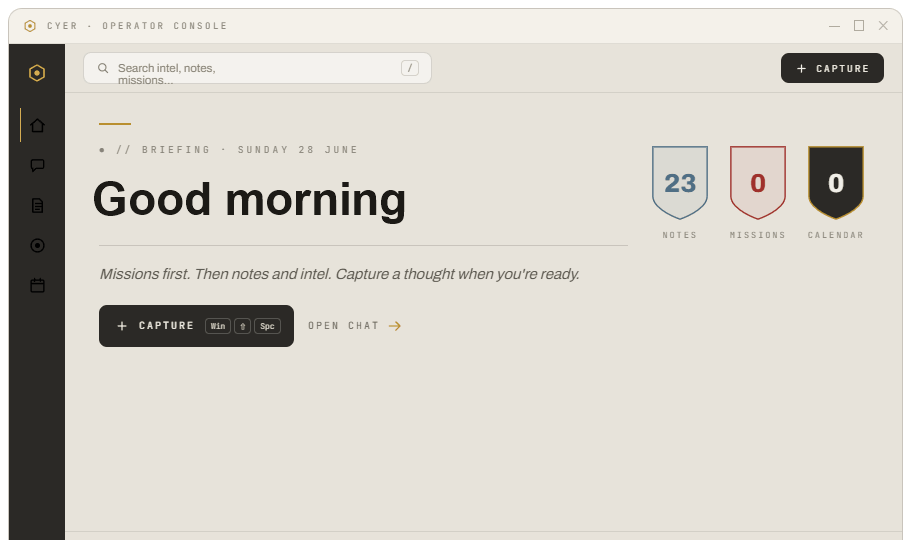
After onboarding you land on Briefing — capture notes, open chat, and start missions from here. -
5
Sign in with Google (optional)
Website and desktop share the same account identity for billing and plan sync. Notes, missions, and activity stay local on each machine.
- On the website: open cyer.app/login or cyer.app/signup and choose Continue with Google (email/password also works).
-
In the app: open Settings → Account and sign in with Google.
Complete the browser flow; the app receives the callback via the
cyer://deep link.
On Mac, launch from Applications at least once so the deep-link handler is registered. If Account shows “credentials missing,” you are on a build that was packaged without auth keys — install the latest official DMG/EXE from the download page.
Not the same as Calendar Google
Account Google sign-in is for your Cyer identity. Google Calendar (when enabled) is a separate connect flow under Settings → Integrations.
-
6
Download & updates
First install always comes from cyer.app/download or GitHub Releases.
Later versions: Cyer checks for updates on launch and from Settings → About → Check for updates. You should not need Drive links or a full manual reinstall for routine upgrades once you are on the update channel.
- If the updater says to download a new installer, use the official download page again.
- On Mac, if Check for updates only offers a manual download, install that DMG once — then in-app updates can resume when Mac artifacts are published.
-
?
Troubleshooting
Windows SmartScreen
- Use More info → Run anyway on the official installer. Do not download from unofficial sites.
- Compare SHA-256 on the download page / release notes when published.
Mac Gatekeeper / quarantine
- Open Anyway in Privacy & Security, or
xattr -dr com.apple.quarantine /Applications/Cyer.app. - “App is damaged” on ad-hoc builds is usually Gatekeeper — same Open Anyway / xattr path.
Updater
- Soft “download the latest installer” notices mean the channel does not have a package for your OS yet — use /download.
- Signature failures after a key/channel change: install the newest full installer once, then try Check for updates again.
AI / Claude / MCP
- Connect providers in Settings → Integrations. Step-by-step: Claude Code CLI, Codex CLI, Ollama.
- Optional Cyer MCP for Claude Desktop is covered in the Claude guide (Node.js required for that path today).
Hotkeys ignored
- Another app may own Win/⌘+Shift+C/Y/Z/X. Quit the conflicting tool or remap later when the app supports it.
Still stuck
- Export diagnostics from Settings → About if asked, then email hello@cyer.app with your OS and the step that failed.
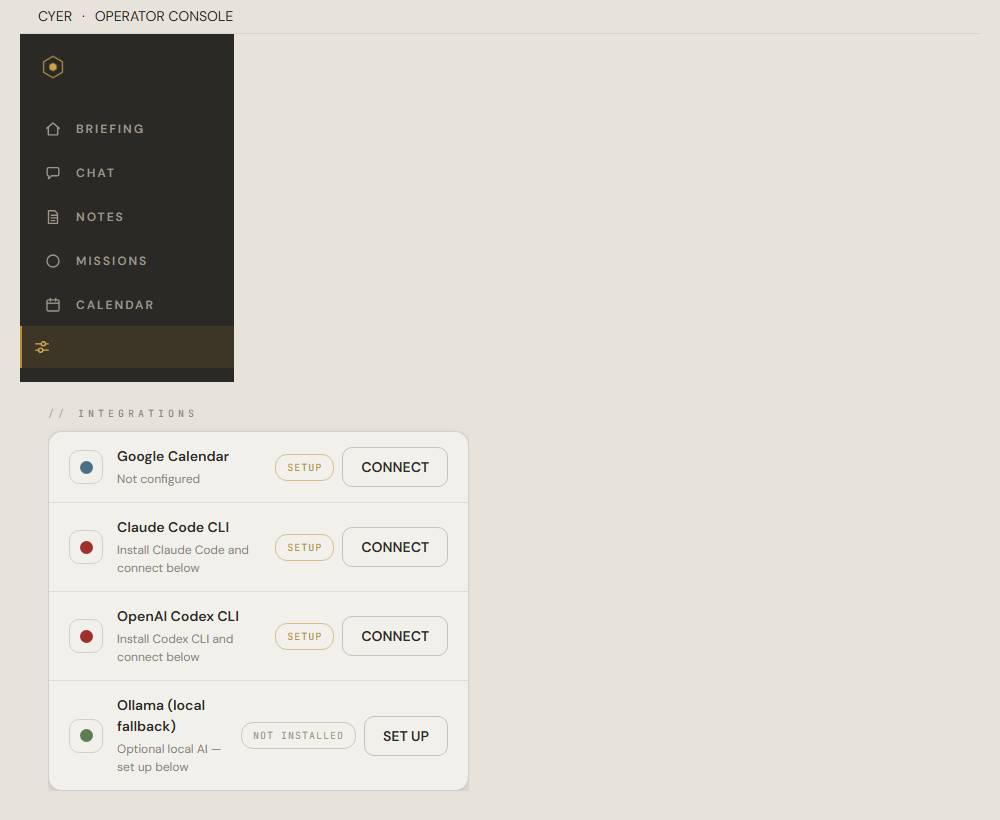
When AI chat fails, start here: Settings → Integrations, then the matching setup guide.
Still stuck?
Email hello@cyer.app and tell us where you got stuck. We will help.